COMMANDS WHICH CAN BE USED TO SOLVE THE TASKS
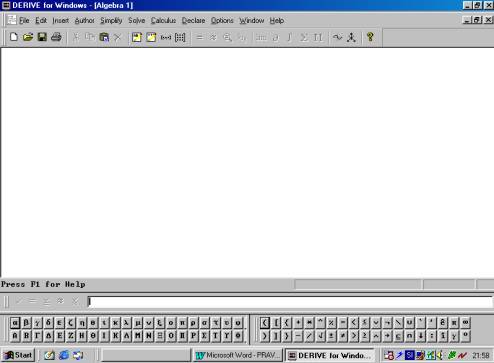
1.) We write an expression in the dialog box on the lower part. For example, if we want to do something with the logarithmic function with the base 10, we write log(x, 10) and conclude the input by pressing the “Enter” – key.
2.) Now
we will plot the graph of the logarithmic function. We use the command Insert in the menu bar. This menu offers
4 commands. We use 2D – plot Object.
Derive creates a plot window. We can sketch the curve, if we repeat command Insert and then use command Plot.
The other way to sketch the graph of the
function is to click on the toolbar button  twice.
3.) If
you want to delete the curve, you choose the command Edit in the menu bar and one of the Delete commands in this menu.
4.) In
order to switch between a plot and algebra window we have to choose the command
Window and then choose one of the
windows given below. Or we use the toolbar button  to switch from the graphics window to the
algebra window.
to switch from the graphics window to the
algebra window.
5.) Sometimes
we have to change the unit size on co-ordinate axes. We use Set in the menu bar and the third choice
Plot Region. We choose, for example,
horizontal length 30 and 30 intervals, too. We don´t change the vertical
length. With click on the OK key we get the co-ordinate axes with the new unit
size.
6.) The
family of functions, for example,  is drawn by entering an expression
  , where is at the first place the function, at the second is
the index variable and then the first value of the index variable and the last
value of the index variable. At the end we can write the step size of the index
variable. The default is a step size of 1. Then we simplify the expression by
the command Simplify in the menu bar
and with the offer Basic in this
menu. We plot these as before.
, where is at the first place the function, at the second is
the index variable and then the first value of the index variable and the last
value of the index variable. At the end we can write the step size of the index
variable. The default is a step size of 1. Then we simplify the expression by
the command Simplify in the menu bar
and with the offer Basic in this
menu. We plot these as before.
7.) To
write a title or annotation next to a picture we click the point where the
annotation should start. By choosing Insert
and Annotation we get the dialog box,
which allows us to enter the annotation text.
We
delete the annotation text, if we move the graphics cursor on the annotation
text and choose Edit, Delete Annotation.
8.) Replacing
an expression´s variable by specific value is called substitution. To
substitute 3 for x in expression  we perform the
following steps: Simplify, Variable
Substitution, we choose the new value 3 and click on the OK key. Then we approximate the
expression with the command Simplify,
Approximate, we choose digits of precision and choose Approximate once more. Of course, we can use the tool bar instead
of the menu bar, too. The toolbar button for the approximate is
we perform the
following steps: Simplify, Variable
Substitution, we choose the new value 3 and click on the OK key. Then we approximate the
expression with the command Simplify,
Approximate, we choose digits of precision and choose Approximate once more. Of course, we can use the tool bar instead
of the menu bar, too. The toolbar button for the approximate is  . It
is also possible to write the expression log(3,
10) and use only the last part of this instruction.
. It
is also possible to write the expression log(3,
10) and use only the last part of this instruction.
9.)
We can solve the equation, for example  or only
  on two different
ways. The first is the exact way using the commands Solve, Expression, Algebraically, Solve. If we want to try to solve
the first equation, Derive returns the equation in different form but still
unsolved. This indicates that Derive cannot solve this problem. For the
elementary equation the exact way is convenient. Therefore, the best way is an
approximative solution with the order Solve,
Expression, Numerically, Solve, which really gives us a solution.
on two different
ways. The first is the exact way using the commands Solve, Expression, Algebraically, Solve. If we want to try to solve
the first equation, Derive returns the equation in different form but still
unsolved. This indicates that Derive cannot solve this problem. For the
elementary equation the exact way is convenient. Therefore, the best way is an
approximative solution with the order Solve,
Expression, Numerically, Solve, which really gives us a solution.